We recommend setting up a recovery email in [Settings] - [Password Recovery Email] as soon as possible, and please remember your password.
Find answers to frequently asked questions about Secret Vault. Learn how to use features, troubleshoot issues, and get the most out of your privacy protection app.
You have the following methods to back up your photos:
1) In [Settings] - [Backup], you can backup all photos and videos to your phone's [Files] directory. You can also backup individual albums from the [Album Info] page.
2) You can move all your photos to the iTunes Album folder, then connect your iPhone to your computer using the USB cable, access the app using File Sharing of iTunes on your computer, and select all photos to save on your computer. Please refer to the link below for specific steps.
Use iTunes to share files between your computer and your iPhone, iPad, or iPod touch
3) Upload photos to Cloud Drive (OneDrive, Google Drive, Dropbox). For details, please refer to "8. How to upload and download photos from the cloud".
When you restore your new phone using [Restore from iCloud], the app and all its contents will be automatically installed and restored on your new phone. You can also manually transfer photos using the following 5 methods:
1) We recommend using the built-in [Nearby Drop] feature in the app to transfer photos to your new phone. You need to install Secret Vault on both phones and enable the [Nearby Drop] feature.
2) Manually export all photos and videos to the system album, then transfer them to another new iPhone using AirDrop and import them into Secret Vault on the new iPhone.
3) Make a backup of your old iPhone using iTunes and restore it to your new iPhone. This method is simple and fast, and you can move all the content from your old iPhone to your new iPhone. Please refer to the links below for specific steps.
Restore your device from an iTunes backup
4) Connect your iPhone and computer to the same Wi-Fi network and use Wi-Fi transfer to backup to your computer. Then transfer photos from your computer to your new phone via Wi-Fi.
5) Transfer photos using a cloud drive: upload photos to the cloud drive, then download them from the cloud drive to your new phone.
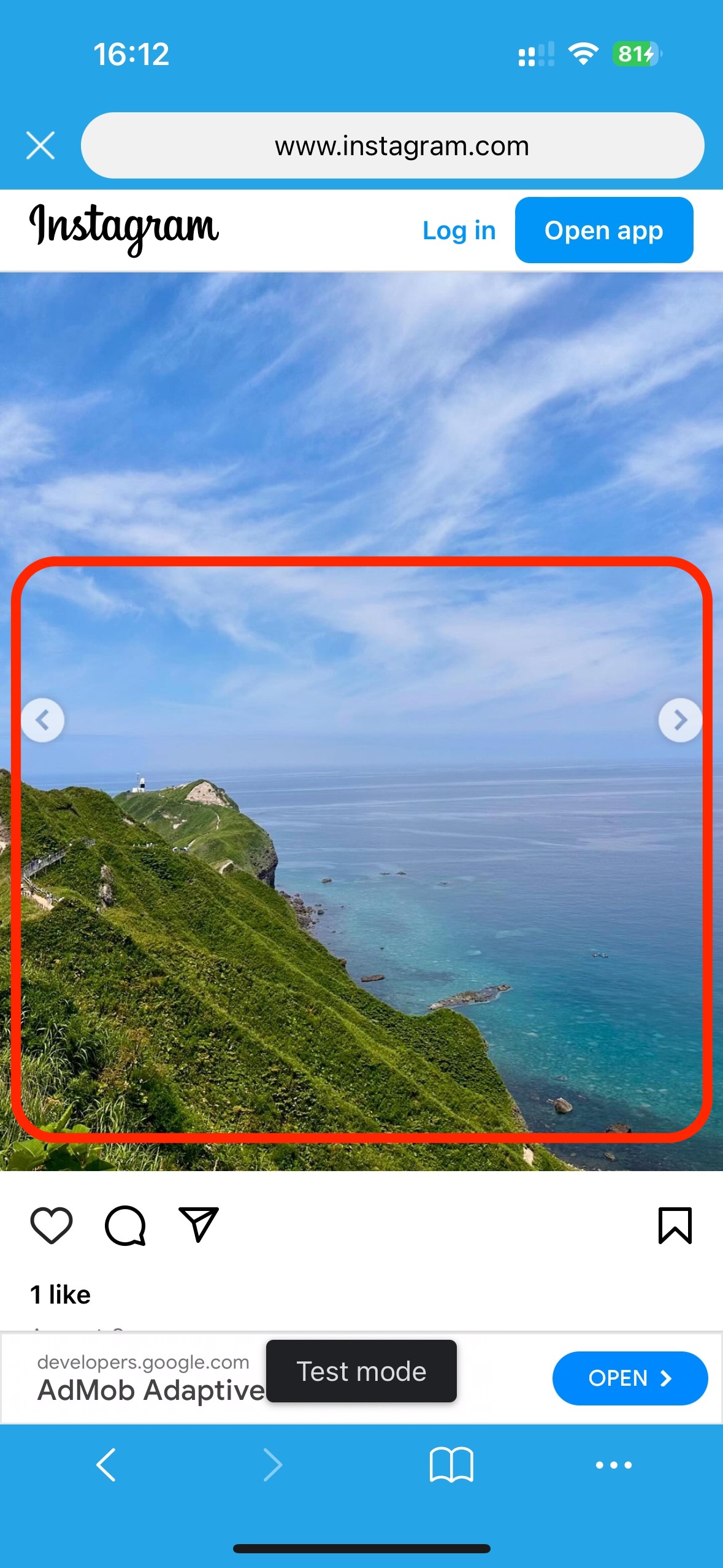
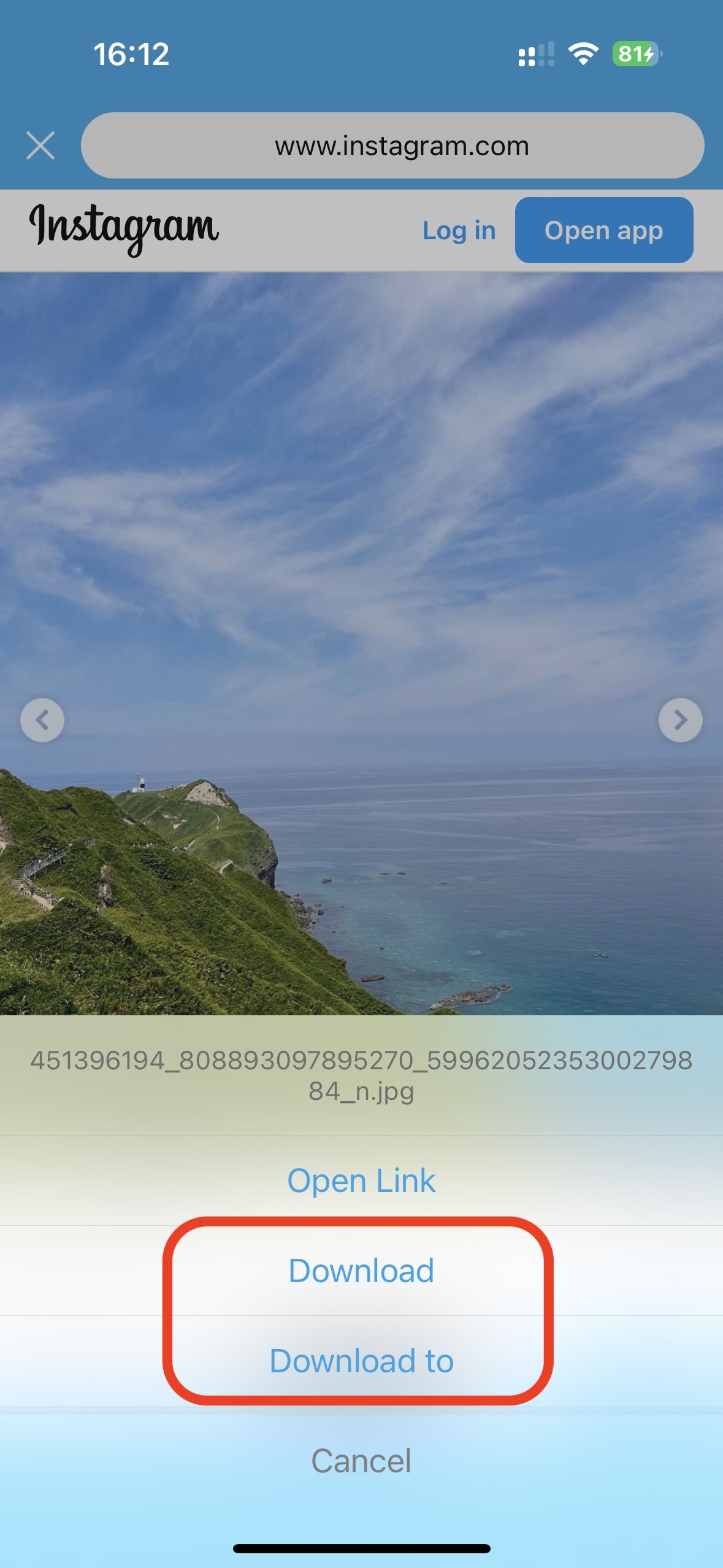
1) Tap and hold for 1 second in the image area
2) Tap "Download" or "Download to" to download
Step 1:
Tap and hold for 1 second in the image areaStep 2:
Tap download to save to your albumAfter setting the app icon to calculator in [Settings] - [Change App Icon], the unlock page will become a calculator interface. Enter the same PIN password (you don't need to enter the leading 0 of the PIN password), then tap the [%] button to unlock.
Upload: Select the photos you want to upload in the photo list, tap "Export" and select Cloud Drive, access a cloud drive, and tap "Upload to here" at the location where you want to save them.
Download: Tap "Cloud Drive" in the albums list and access one of the drives. Tap the "more" button next to the image, then tap "download" and select the folder where you want to save it.
1) Make sure your phone and computer are connected to the same Wi-Fi network, and tap the [Wi-Fi] button on the album list page.
2) When the web address is displayed on your phone, enter the web address in your computer's web browser to access photos on your phone.
Use 3D Touch (or long press) on images or GIFs in Safari until the image is displayed separately in a new tab. Then tap the "Share" button at the bottom and select SV. The image will be saved in the iTunes Album folder of Secret Vault.
Please follow the steps below.
By default, the last photo in the album is used as the album cover. You can also set the album cover in [Album Info].